Connect Instagram so your AI agent answers direct messages
Every step, in order, from the Instagram app to the details you paste into Serviti. Allow about 30 minutes. You will switch between four places: the Instagram app, Meta Business Suite, the Meta developer dashboard and Serviti.
Before you start
- A Serviti workspace with Instagram AI: included in the 30-day Growth trial, then a paid add-on on any plan. See pricing.
- Admin access to the Meta business portfolio that owns your Instagram account.
- A privacy policy page on your website, which Meta asks for.
Part 1 · In the Instagram app
Two settings on the account your customers message. Do these on your phone.
Use a professional account
Your account must be a Business or Creator account. In Instagram, open Settings → Account type and tools. If you see Switch to professional account, tap it and follow the steps.
Allow access to messages
In Instagram, open Settings → Messages and story replies → Connected tools and turn on Allow access to messages. Without it, Meta never sends your messages to Serviti, and nothing tells you why.
Part 2 · In Meta Business Suite
Your Instagram account must belong to a business portfolio and be linked to a Facebook Page. Sign in at business.facebook.com as an admin of that portfolio.
Check your Instagram account is linked to a Facebook Page
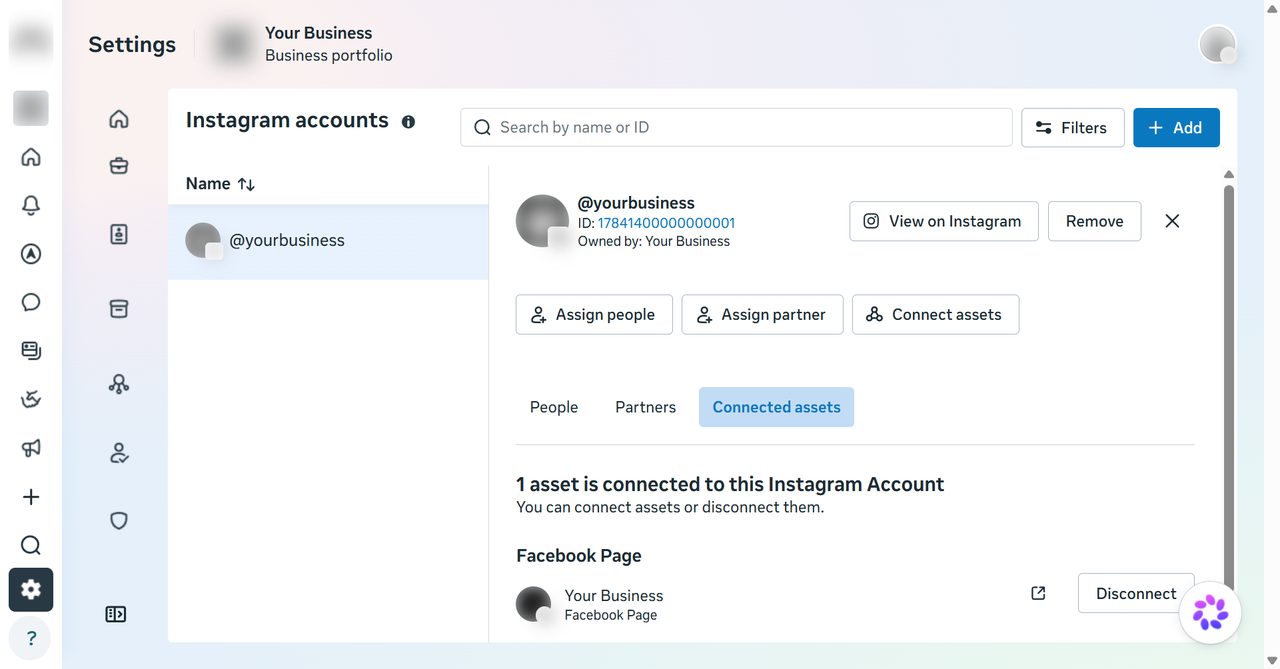
Open Settings → Accounts → Instagram accounts, choose your account and open Connected assets. You should see a Facebook Page. No Page? Create one for your business and connect it from the same screen.
Note the ID shown under your Instagram username. This is your Instagram account ID for Serviti.
Note your Facebook Page ID
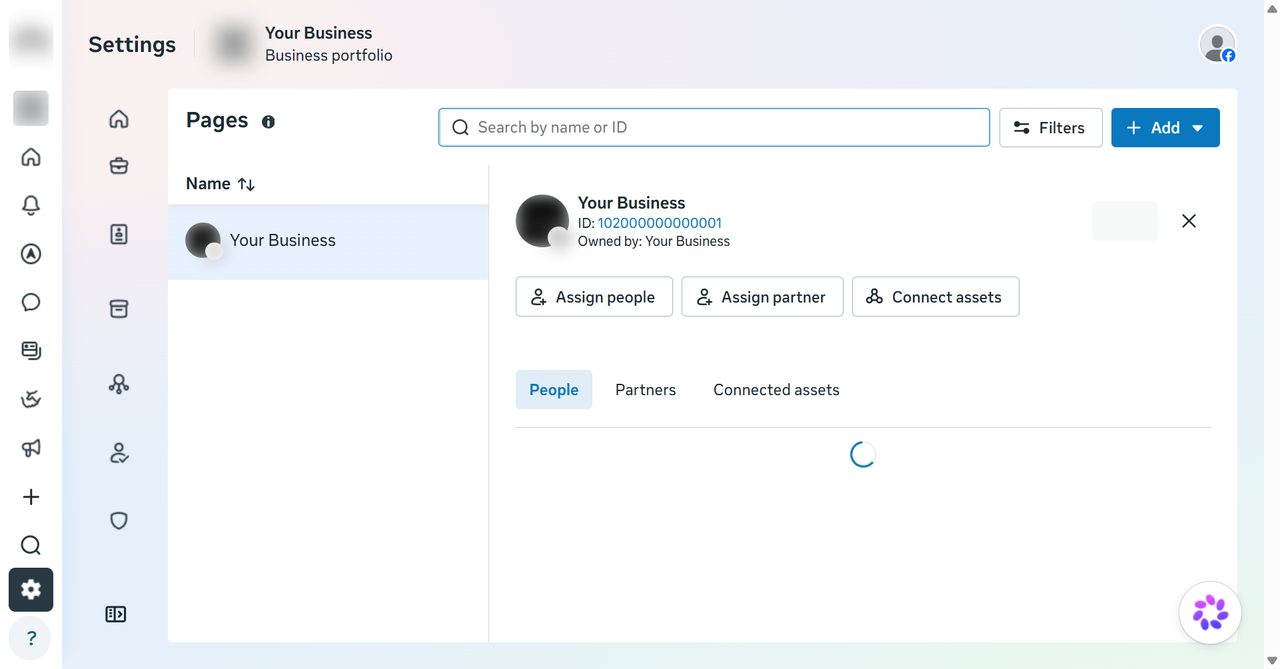
Open Settings → Accounts → Pages and choose your Page. Copy the ID under its name. This is your Facebook Page ID for Serviti.
Part 3 · Create your Meta app
The app is how Meta delivers your direct messages to Serviti. Sign in at developers.facebook.com with the same Facebook account.
Create the app
Go to My Apps → Create app. Give it a name such as YourBusiness DM Agent. Meta rejects names containing Instagram, Insta, Gram, Facebook or FB. Enter a contact email you check.
Choose the Instagram messaging use case
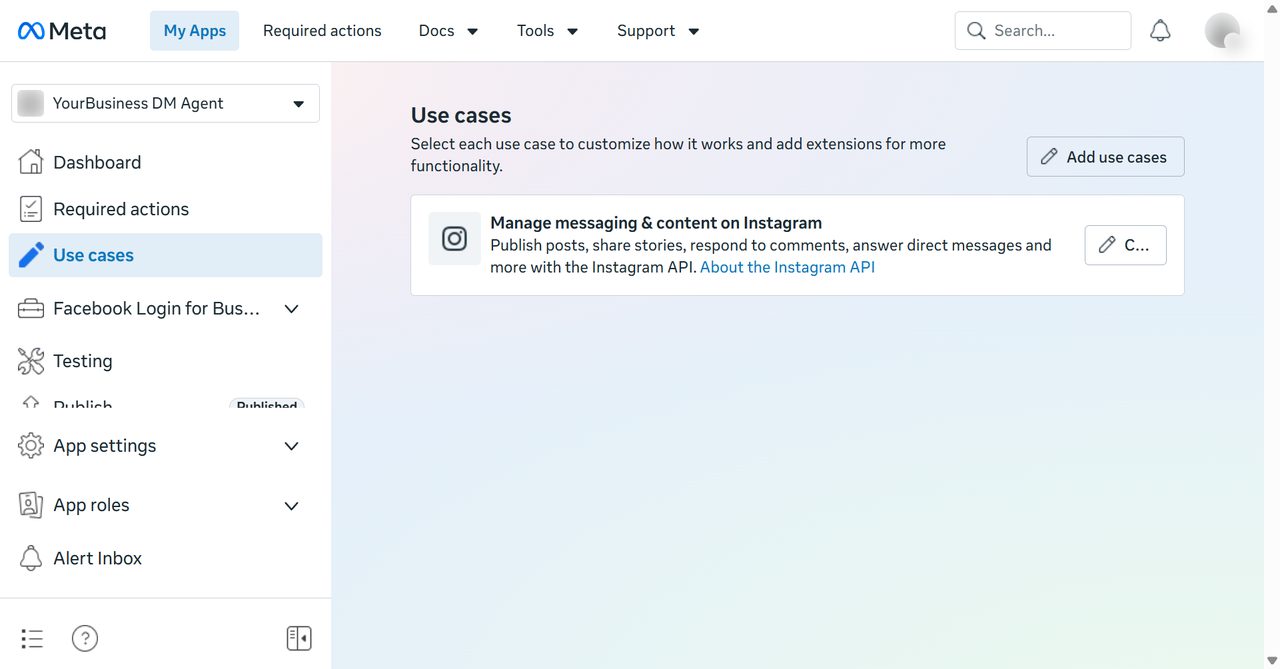
Under Use cases, choose the one for managing messaging and content on Instagram.
Choose your business portfolio
Pick the business portfolio that owns your Instagram account and Page, then finish creating the app.
Fill in the app details
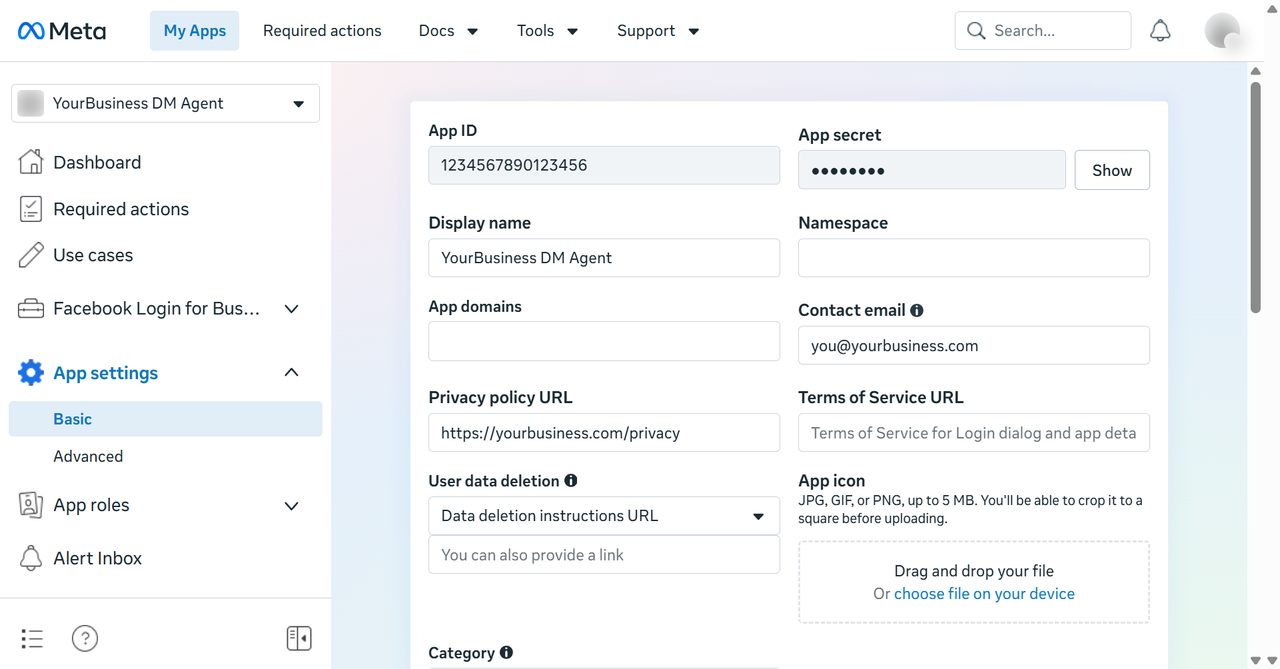
Open App settings → Basic and fill in your business’s Privacy policy URL: Meta needs it before you can publish. Fill in any other field Meta marks as required. Click Save changes.
Publish the app
Click Publish. Meta’s webhook settings say it outright: an unpublished app receives only test messages, not your customers’. For your own account you do not need App Review or Advanced Access.
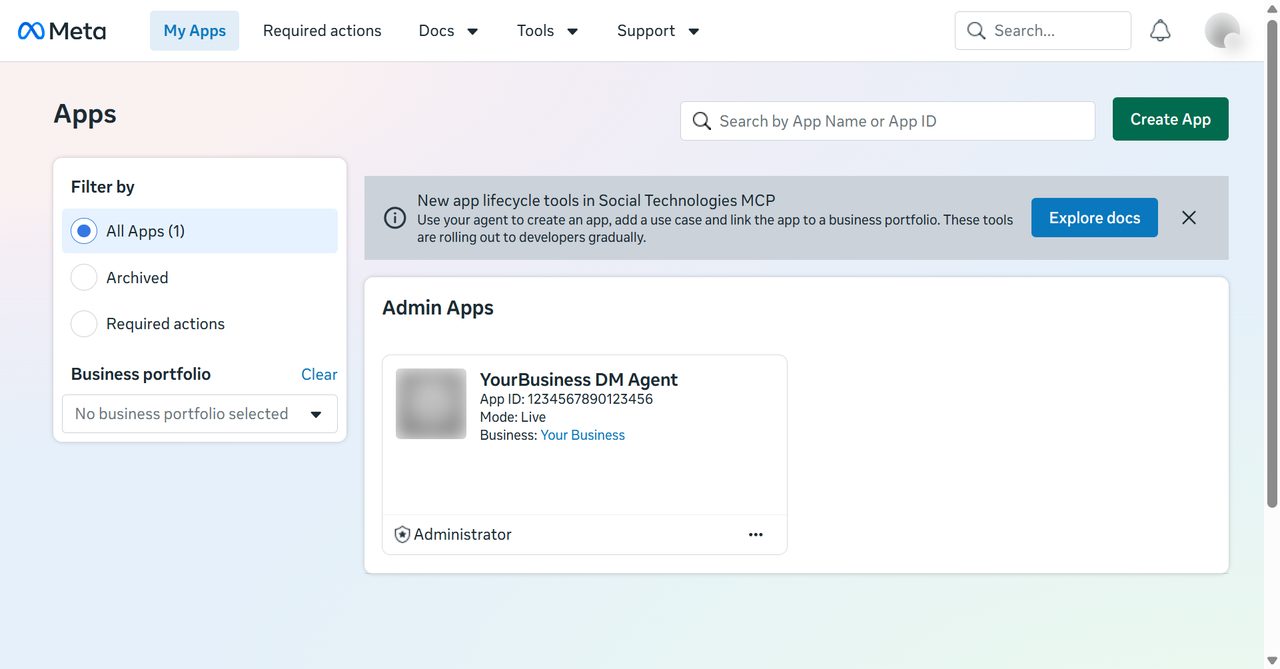
Part 4 · Add your Instagram account to your Meta app
Meta only sends messages for Instagram accounts added to your Meta app.
Make your account an Instagram Tester
In your Meta app (developers.facebook.com), open App roles → Roles → Add people, choose Instagram Tester and enter your Instagram username.
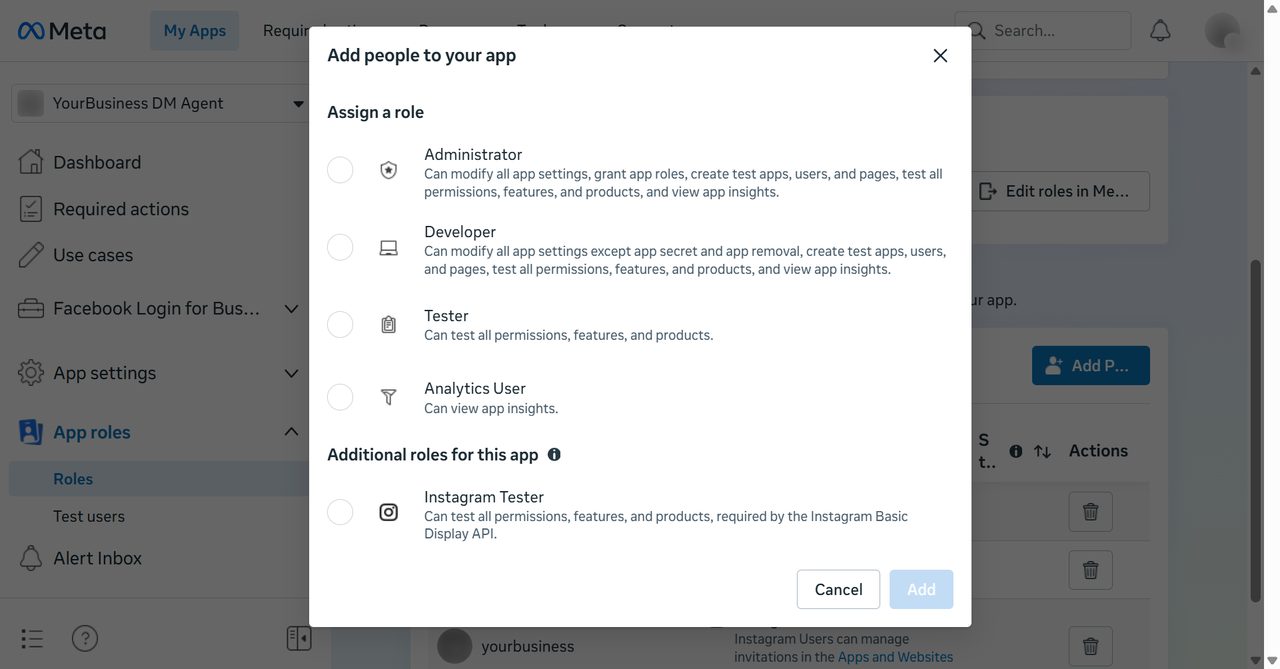
Accept the invite on Instagram
On a computer, go to instagram.com → Settings → Apps and websites → Tester invites and click Accept.
Add the account and turn on its webhook subscription
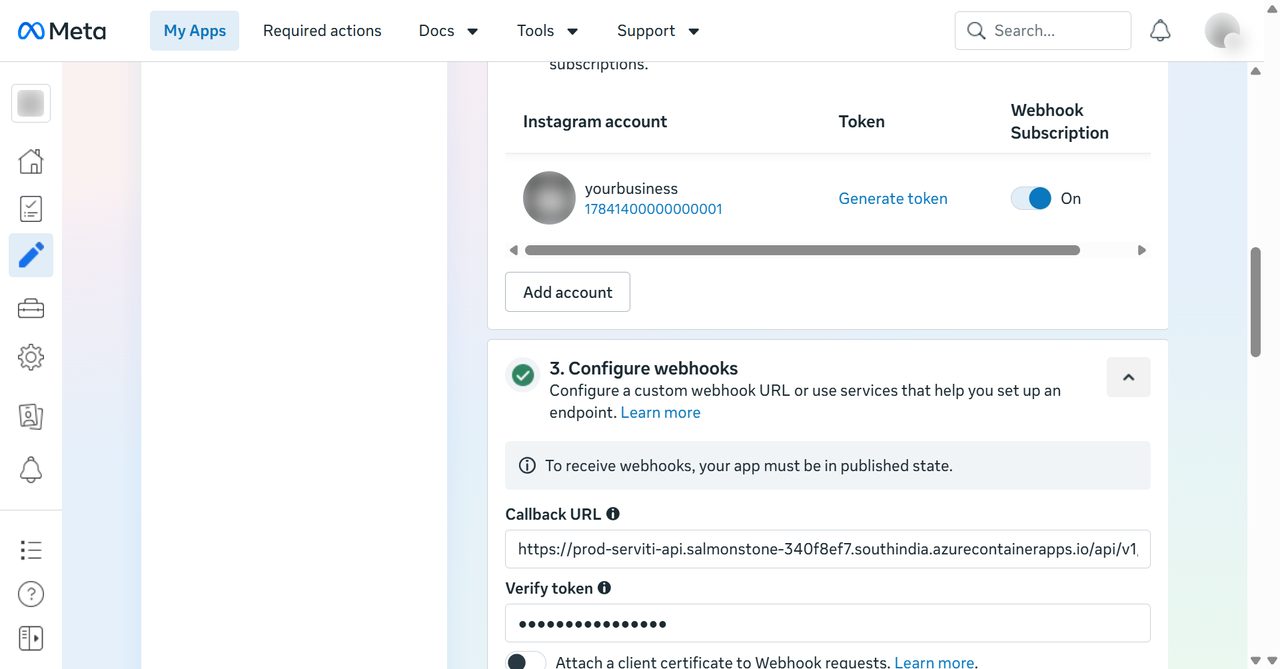
Back in your Meta app (developers.facebook.com), open Use cases → Instagram → Customize → API setup with Instagram login. Under Generate access tokens, click Add account and sign in to your Instagram account. Then switch on Webhook subscription next to it. If the switch is not available yet, come back to it after Part 7.
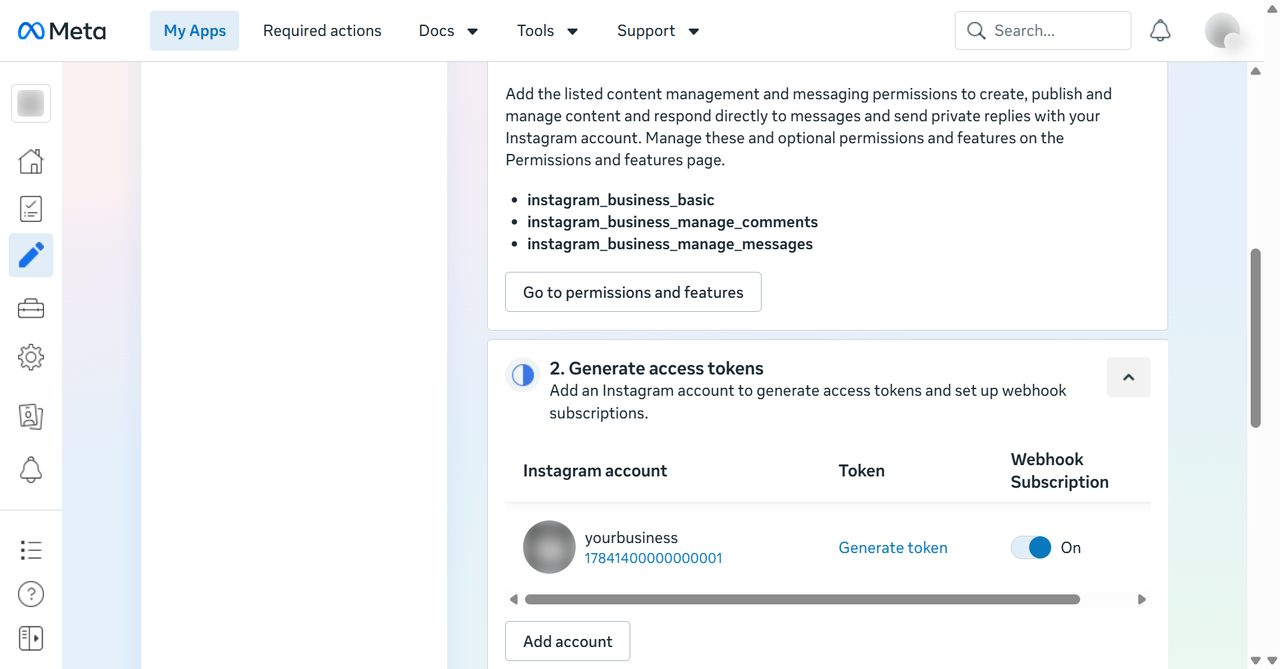
Copy the Instagram app secret
On the same screen, find the Instagram app secret, click Show and copy it. This is the App Secret Serviti needs. It is not the App secret under App settings → Basic: Meta signs your messages with the Instagram one.
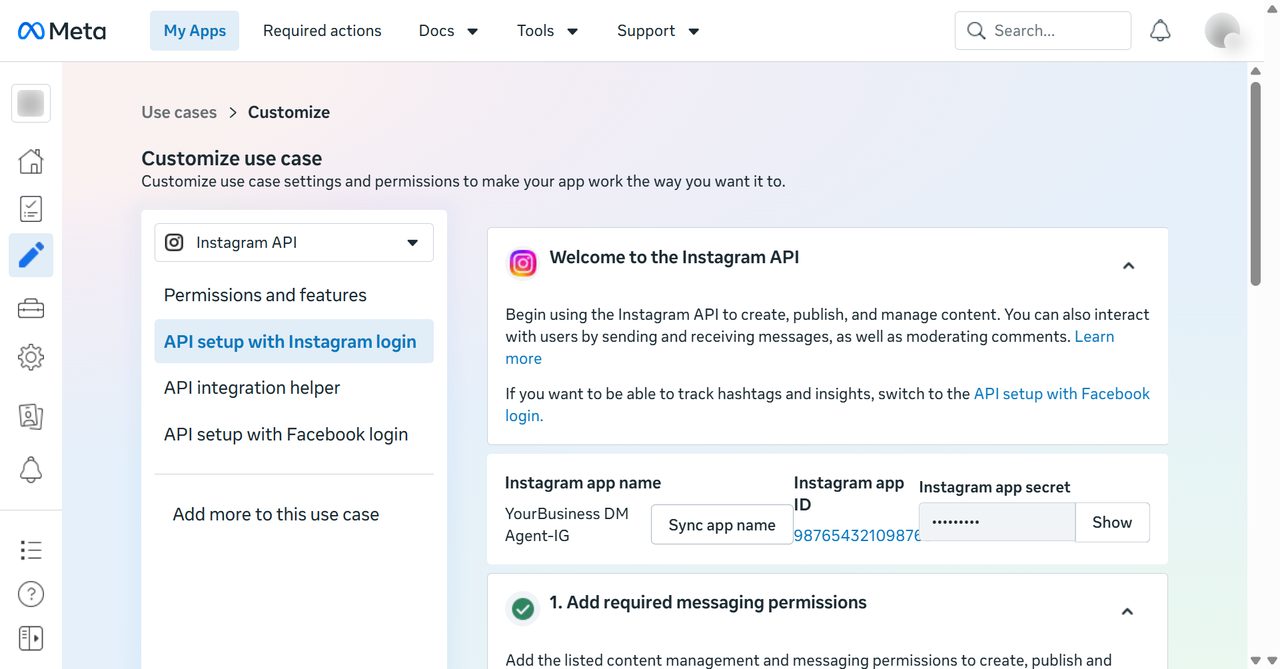
Part 5 · Create the access token
Serviti uses a system user token to send your agent’s replies. Create it in business.facebook.com, in the same portfolio. If it is ever revoked, generate a new one and use Update credentials.
Add a system user
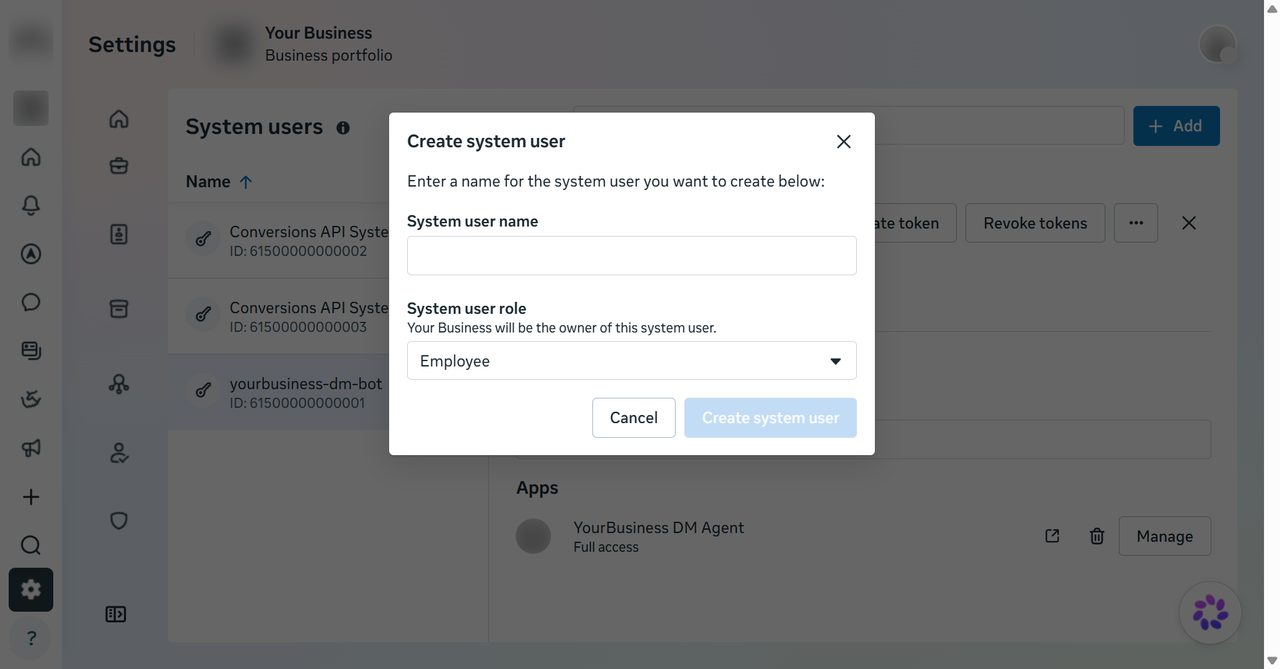
Open Settings → System users → Add. Give it any name that differs from your app’s name, for example yourbusiness-dm-bot, and choose the Admin role.
Assign your app, Page and Instagram account
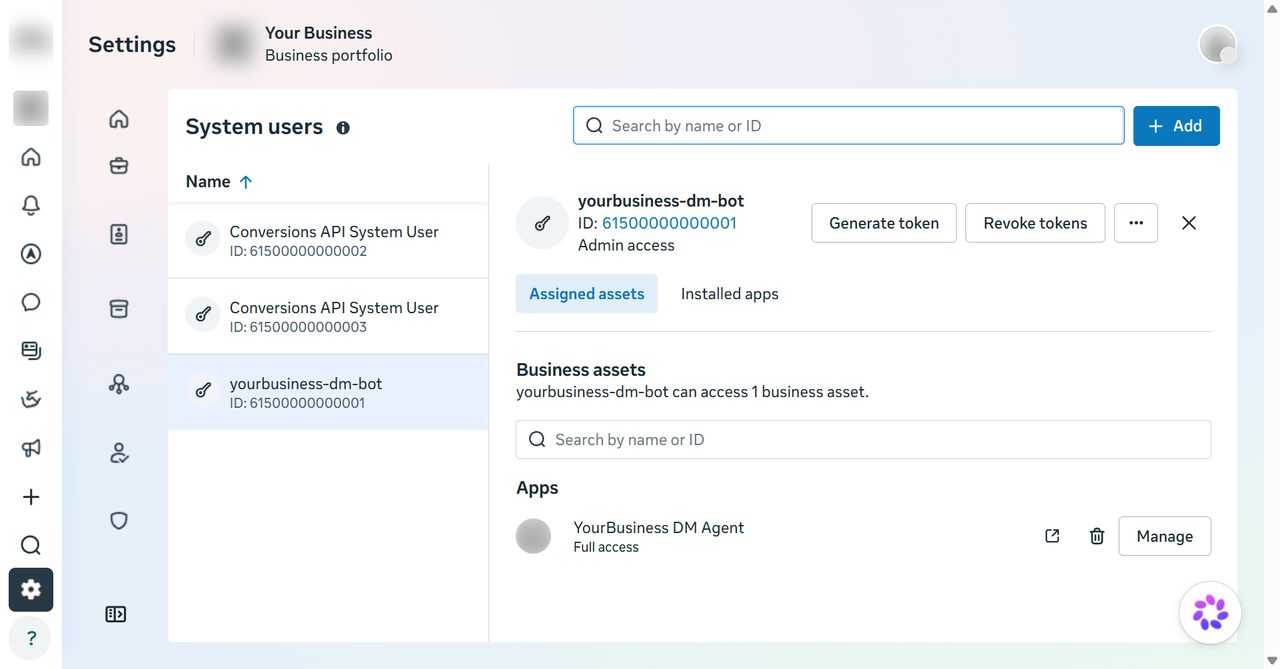
Open the system user and, under Assigned assets, make sure your new app is listed with Full access. If not, use Assign assets to add it. You can add your Facebook Page and Instagram account the same way.
Generate the token
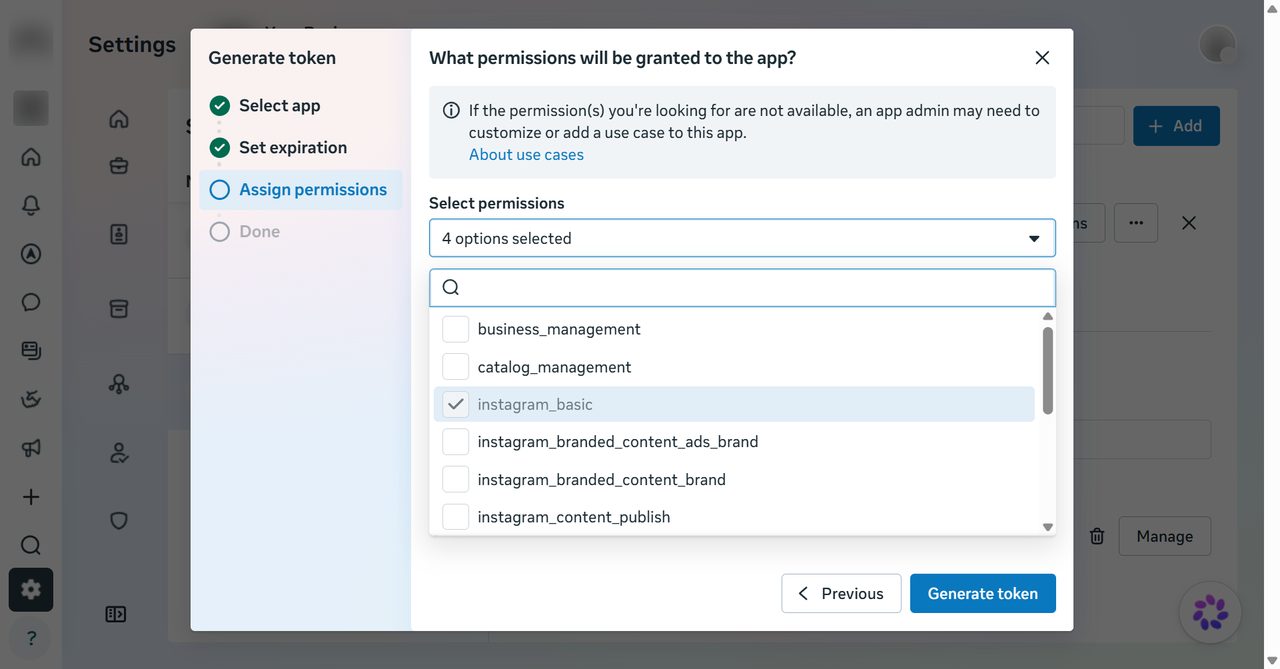
Click Generate token, choose your app and click Next. Set expiry to Never, click Next, then under Select permissions tick
instagram_basic,instagram_manage_messages,pages_read_engagementandbusiness_management. Click Generate token and copy it straight away: Meta shows it once.A permission missing from the list? Add it to your app’s Instagram use case under Customize, then generate again. Don’t use the token from the Instagram login screen instead.
Part 6 · Connect in Serviti
Now paste what you collected. Sign in at app.serviti.ai as a workspace admin.
Open Connect Instagram
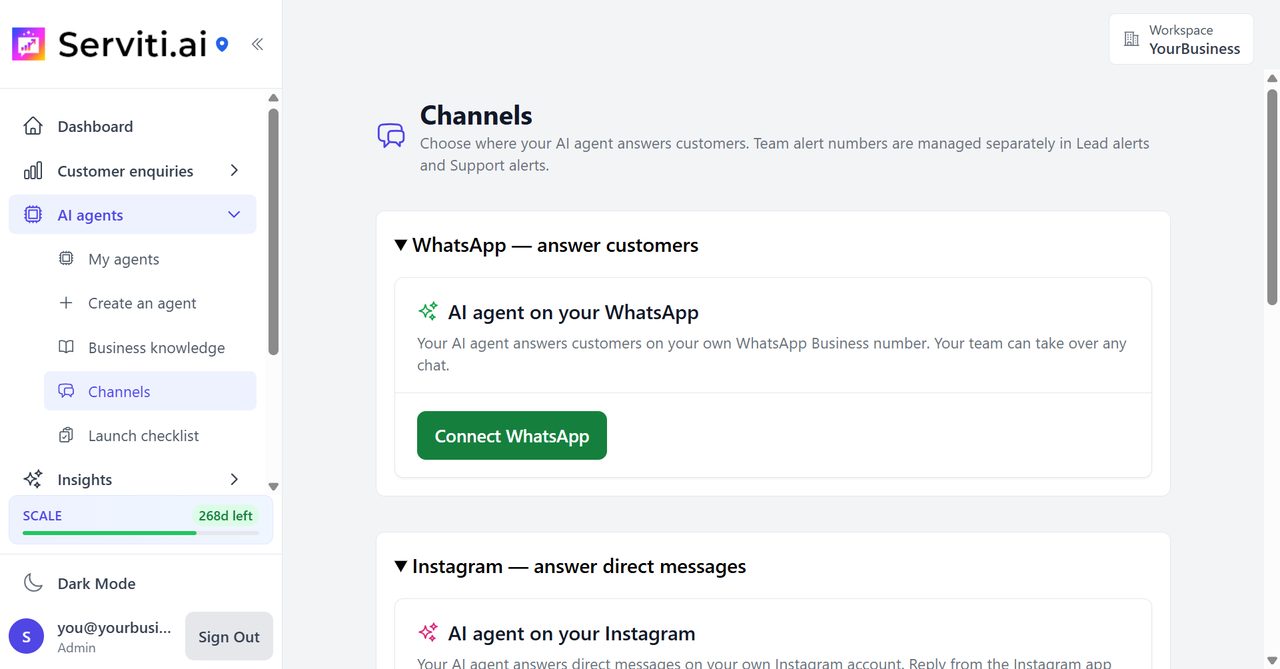
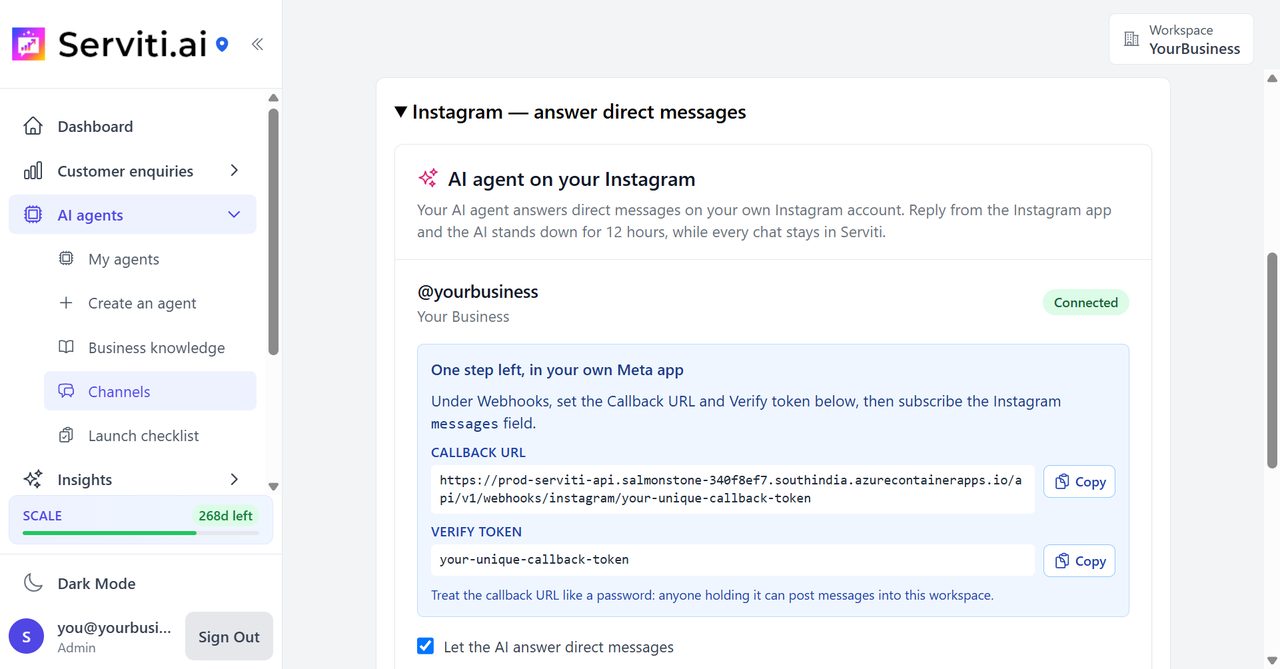
In the menu, open AI agents → Channels and expand Instagram — answer direct messages. Under AI agent on your Instagram, click Connect Instagram.
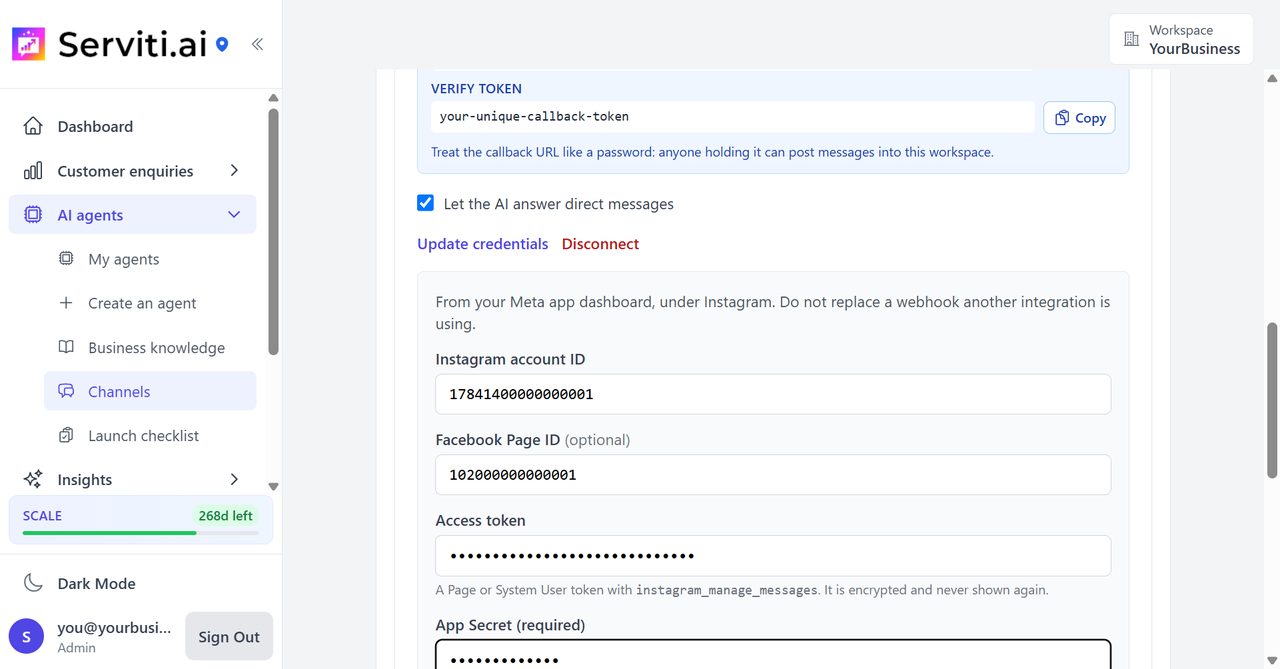
Paste your details
- Instagram account ID: from step 3.
- Facebook Page ID: from step 4.
- Access token: the system user token from step 16.
- App Secret: the Instagram app secret from step 13.
- Does this app callback serve another integration or account? Choose No — this callback is dedicated. If your app’s callback already serves another tool, don’t overwrite it: create a separate Meta app for Serviti (Part 3) and use that.
Click Connect. Serviti checks with Meta that your token can read the account you named.
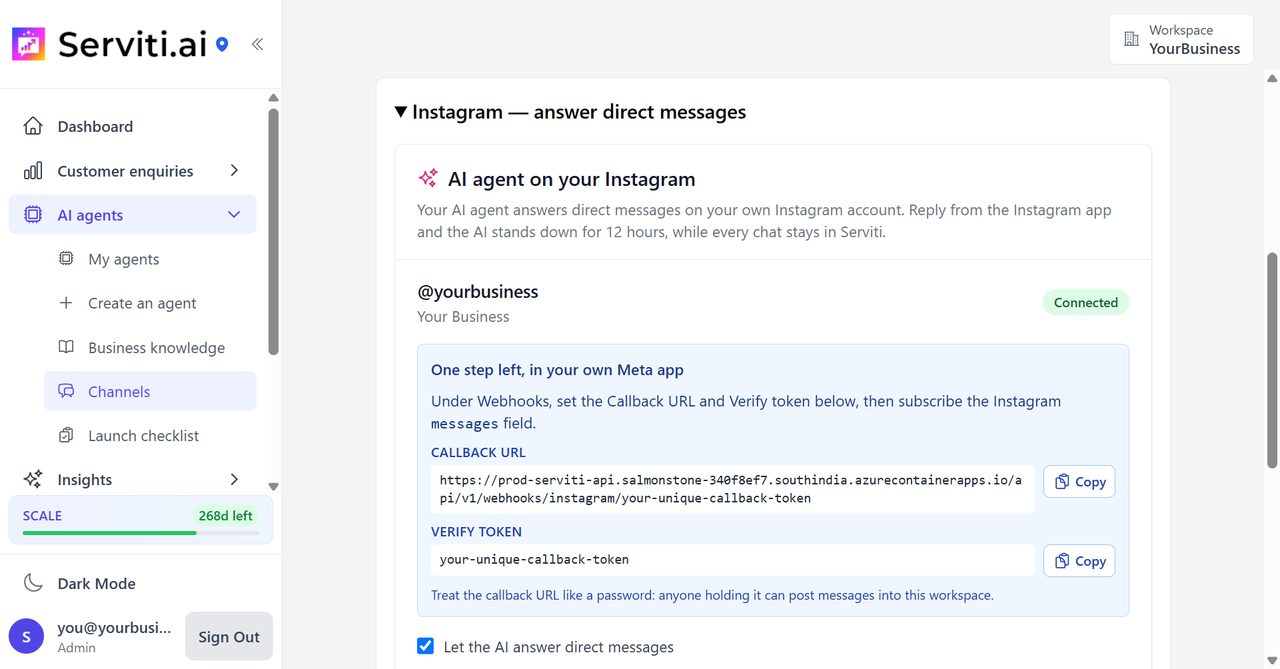
Copy your Callback URL and Verify token
Serviti now shows a Callback URL and a Verify token. Keep this page open. Treat both like passwords.
Part 7 · Point Meta at Serviti
The last step, back in your Meta app.
Paste the Callback URL and Verify token
In your Meta app (developers.facebook.com), open Use cases → Instagram → Customize → API setup with Instagram login → Configure webhooks. Paste the Callback URL and Verify token from Serviti and click Verify and save.
Subscribe to messages
In the Webhook fields list on the same screen, switch
messagesto Subscribed. Leave Attach a client certificate off.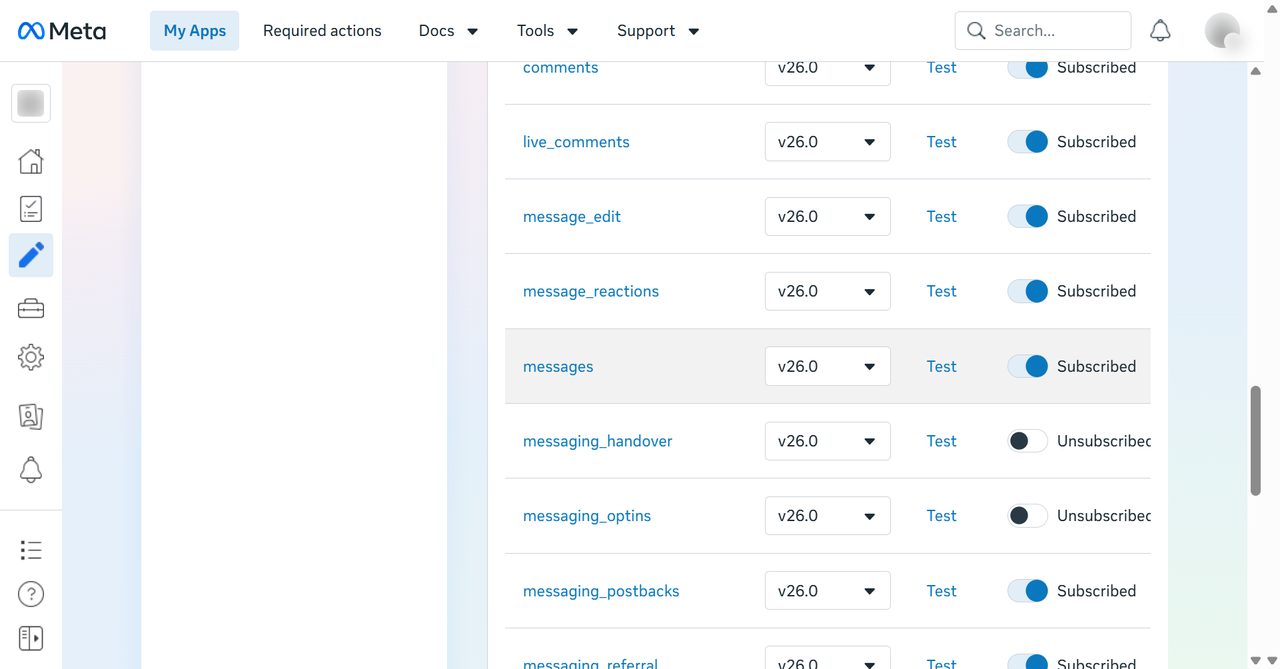
Turn the AI on and test it
In Serviti, switch on Let the AI answer direct messages. Then send your account a direct message from a different Instagram account. Check that a reply arrives and that the conversation appears in Serviti. Repeat with a customer-style account outside the app’s roles once Meta grants the required access.
No reply? Check the Webhook subscription switch from step 12 is on, then see Troubleshooting below.
To answer someone yourself, reply from the Instagram app: the AI steps back from that chat for 12 hours.
Before you call it ready
- A real test DM arrives from another Instagram account.
- The AI reply is delivered and the conversation appears in Serviti’s Customer inbox.
- A clearly labelled test enquiry using contact details you control is captured in Leads and the configured alert arrives.
- A human reply pauses the AI for that conversation; confirm it does not answer over your team.
- Repeat the DM test with an account outside your app’s roles once the required Meta access is in place. Webhook verification or a Meta test sample alone is not an end-to-end test.
Not answering? Check these
Connect says it could not connect the account
- Check the Instagram account ID is the number from step 3, not your username.
- Check the system user was assigned your app, Page and Instagram account (step 15) and the token has
instagram_manage_messages.
Meta’s test arrives but real messages don’t
- Publish the app (step 9). An unpublished app only gets Meta’s test samples.
- Add your account as an Instagram Tester, accept the invite and turn on its Webhook subscription (steps 10–12).
- Turn on Allow access to messages in Instagram (step 2).
Messages arrive but the agent never replies
- The App Secret is the wrong one. Use the Instagram app secret from step 13, not the App secret under App settings → Basic. In Serviti, click Update credentials, re-enter the token and that secret, and save. Your Callback URL stays the same.
- Check Let the AI answer direct messages is on.
It worked, then stopped
- The connection shows Needs attention: the token may have expired, been revoked or lost the required asset permissions. Generate a new one (step 16) and use Update credentials.
- Allow access to messages was switched off in Instagram.
- The Callback URL in your Meta app was changed. If that app is only for Serviti, paste Serviti’s values again. If another tool now uses it, give Serviti its own Meta app (Part 3).
Paid Instagram connection assistance: from ₹19,999 (outside India: $499), quoted after we review your setup. This is separate from free website-agent setup help and from plan or channel subscription charges.