Put an AI chat agent on your website. No developer needed.
Create and test your agent in a few minutes. Website installation and channel connections may take longer. Follow the steps below or watch the tour.
30-day Growth trial, including WhatsApp and Instagram AI · No card required
Step by step
Real screens from a live trial signup.
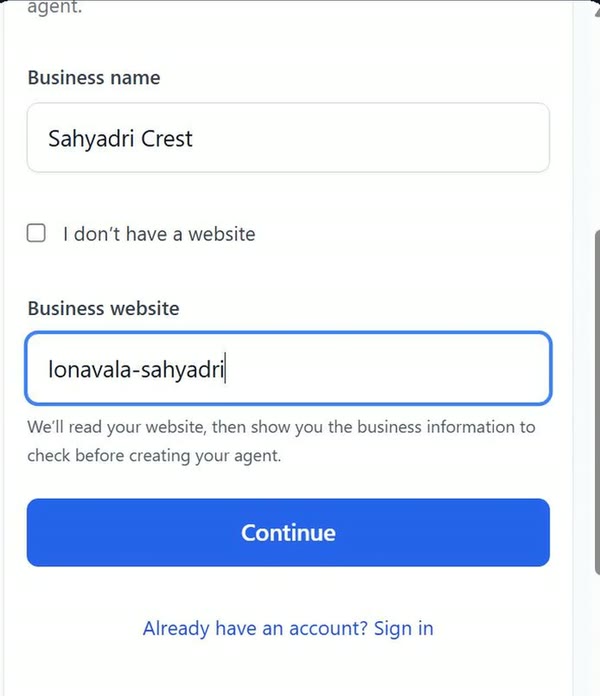
Add your business
Click Start free trial. Enter your business name and website address. No website? Tick I don’t have a website and describe what you offer instead.
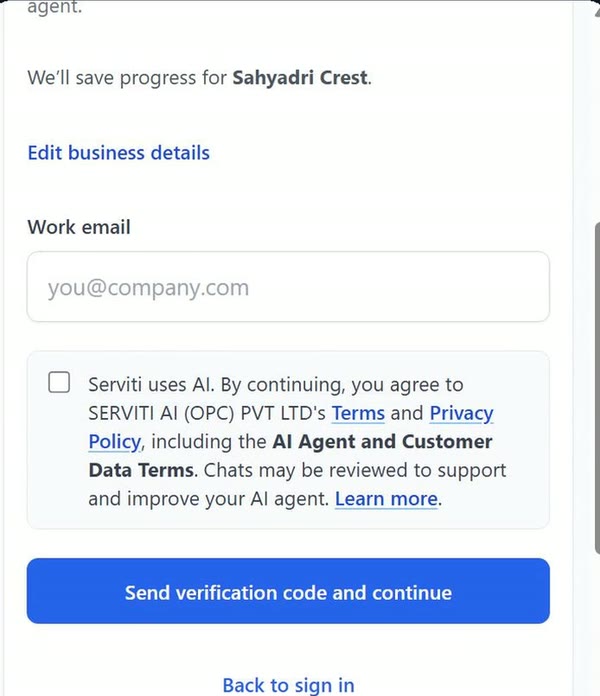
Verify your email
Enter your email, review the Terms and Privacy Policy, and tick the agreement checkbox if you agree. Then click Send verification code and continue. Type the 6-digit code from the email. There is no password to remember.
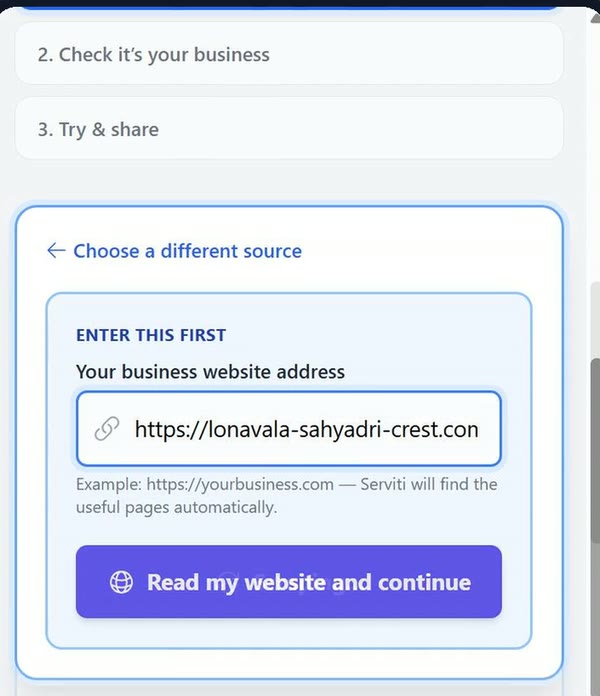
Add your business information
Have a website? Check the address and click Read my website and continue. No website? Your description is already filled in under Business information: add your services, prices, opening hours and common questions, then click Add pasted content to my agent. You can also upload a PDF, Word file, brochure, price list or FAQ.
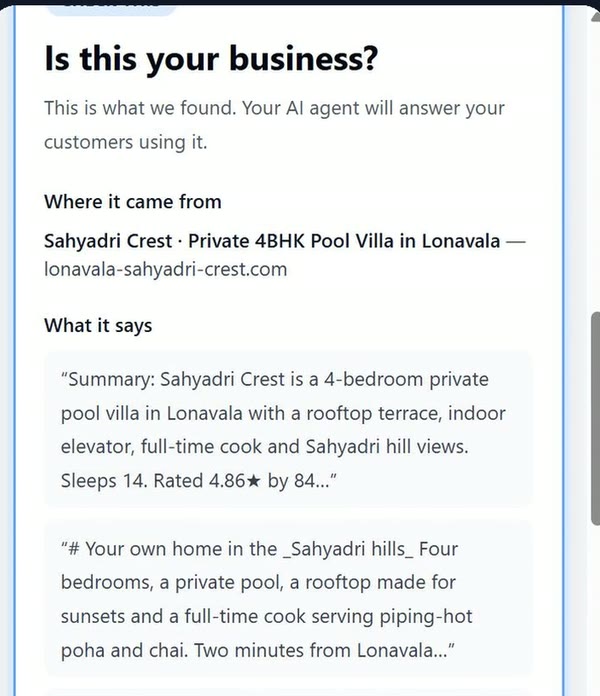
Check it’s your business
Serviti shows what it found. Make sure it is your business: this is what your agent will answer customers from.
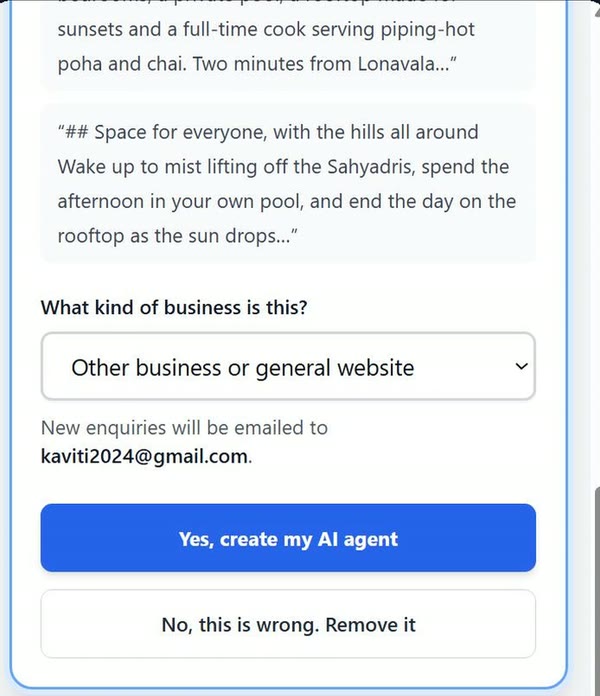
Choose your business type and create the agent
Pick the closest business type, check the email new enquiries will go to, then click Yes, create my AI agent.
Ask it a real question
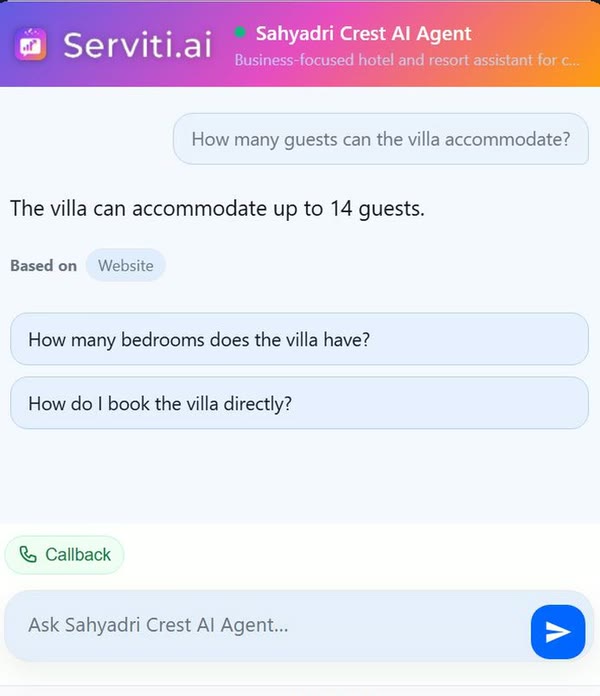
Click Check it out to open your agent. Ask about a price, a service you offer and something you do not offer. Check that it answers from your business information and admits when information is missing before you share it.
Put it on your website
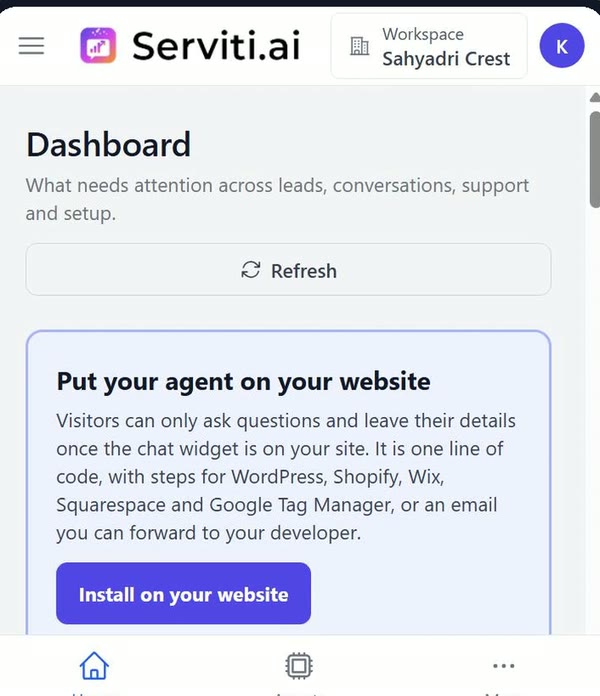
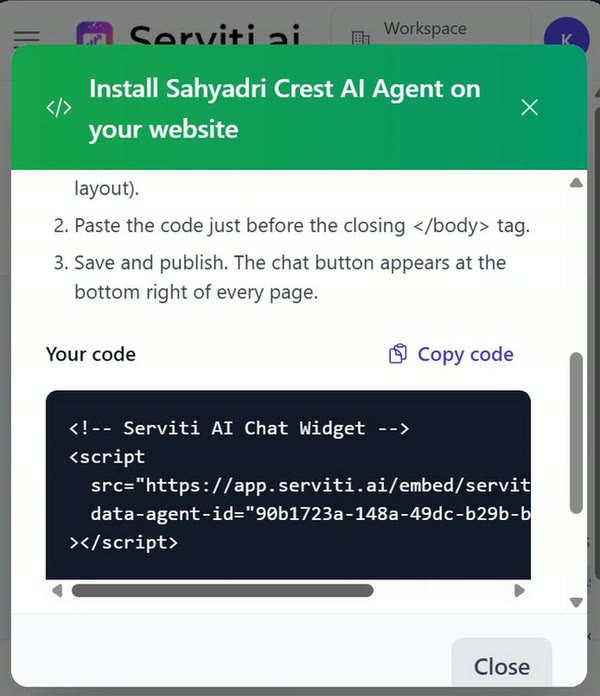
On your Dashboard, find Put your agent on your website and click Install on your website.
Pick where your website is built
Choose WordPress, Shopify, Wix, Squarespace, Google Tag Manager or Any website. The exact clicks for that platform appear. They are also written out below.
Copy your code and paste it in
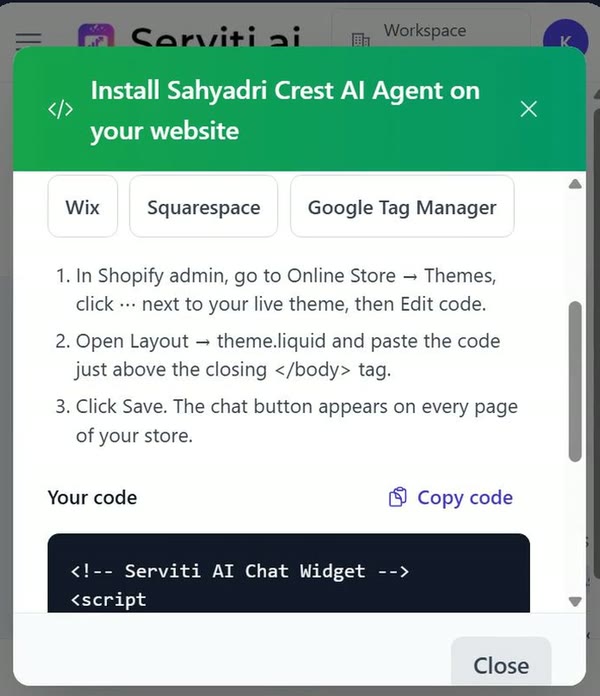
Click Copy code and paste it where the steps say. It is one short script tag. Someone else runs your website? Click Email these instructions to my developer.
Send a test enquiry and check your alert
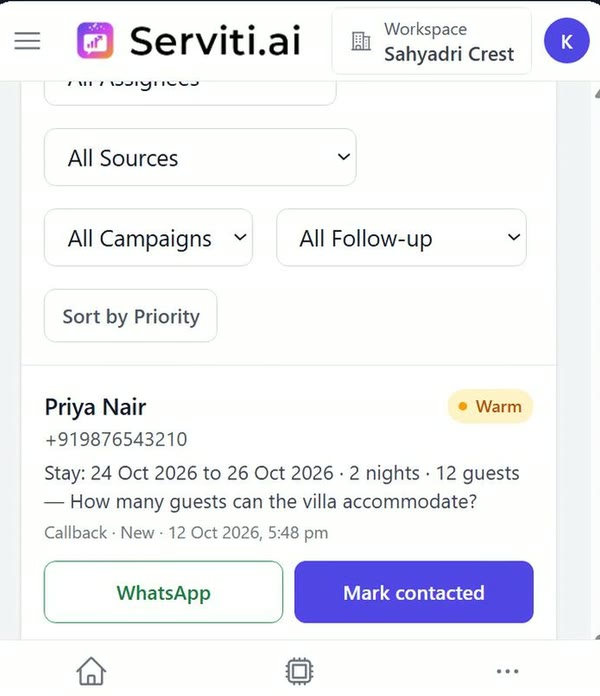
Open a published page of your website and find the chat button at the bottom right. Ask a question and submit a clearly labelled test enquiry using contact details you control. Confirm that it appears in Leads with the conversation, then check that the email alert reaches your configured address. Back in Serviti, reopen Install on your website and check for Widget seen on. If any check fails, use the troubleshooting steps below.
Where to paste the code, by platform
The same steps the Install screen shows. Your code is in your workspace under Install on your website.
WordPress
- In WordPress, go to Plugins → Add New, search for “WPCode”, then install and activate it.
- Go to Code Snippets → Header & Footer and paste the code into the Footer box.
- Click Save Changes. The chat button appears on every page.
Shopify
- In Shopify admin, go to Online Store → Themes, click ⋯ next to your live theme, then Edit code.
- Open Layout → theme.liquid and paste the code just above the closing
</body>tag. - Click Save. The chat button appears on every page of your store.
Wix
- In your Wix dashboard, go to Settings → Custom code and click + Add Custom Code.
- Paste the code, choose All pages and Load code once, and place it in Body - end.
- Click Apply. Custom code needs a Wix Premium plan with a connected domain.
Squarespace
- Open Code Injection: Settings → Advanced → Code Injection (or Pages → Custom code → Code injection).
- Paste the code into the Footer box.
- Click Save. Code injection needs a Squarespace plan that includes it.
Google Tag Manager
- In Tag Manager, go to Tags → New → Tag Configuration → Custom HTML and paste the code.
- Under Triggering, choose All Pages, then save the tag.
- Click Submit, then Publish. The chat button appears once the new version is live.
Any website (HTML)
- Open the HTML of your site template, the part shared by every page (often called the footer or layout).
- Paste the code just before the closing
</body>tag. - Save and publish. The chat button appears at the bottom right of every page.
Share a link or QR code
No website, or want to reach people elsewhere too? Your agent has its own chat page. Nothing to install.
Connect WhatsApp or Instagram
Your agent answers customers on your own business account. You connect it from your Serviti dashboard and your own Meta app. Keep the access token, App Secret and Callback URL private.
Free website-agent setup help does not include connecting your Meta accounts. You can follow the channel guides yourself, or request the separately quoted connection service below.
Already using that Meta app with another tool?
Don’t change its callback: that disconnects the other tool. Serviti needs a callback of its own.
Stopped answering?
- The connection says Needs attention: the token expired or was revoked. Click Update credentials and re-enter the token and App Secret.
- The Callback URL was changed in your Meta app, or the
messagesfield was never subscribed. A successful verify does not subscribe anything. - More checks: WhatsApp troubleshooting and Instagram troubleshooting.
Paid WhatsApp/Instagram connection assistance: from ₹19,999 (outside India: $499), quoted after we review your setup. This is separate from free website-agent setup help and from plan, channel subscription and provider charges.
Check the complete enquiry journey
- No chat button? Check that you copied the code for the correct agent, published the change and added it to the shared template for every page. Reload the published page; use your platform’s preview tools to check whether a consent setting or script blocker is preventing it from loading.
- The agent cannot answer? Check its business knowledge and add the missing services, prices or policies. Test again before sharing it.
- No lead in Serviti? Make sure you submitted the contact form rather than only sending a chat message. Check the correct workspace and the date and status filters in Leads.
- No email alert? Check the destination in Lead alerts and your spam folder, then use Send test alert. Do not assume delivery just because the widget was detected.
- WhatsApp or Instagram stopped answering? Follow the WhatsApp checks or Instagram checks.
Still stuck? Contact the Serviti team. Never share passwords, verification codes, access tokens or App Secrets in a chat or screenshot.
Ready when you are.
Start free, add your business information and test your agent before sharing it.
Stuck on your platform? Ask an AI.
Opens with the question filled in, using our install steps as the source.