Connect WhatsApp so your AI agent answers your customers
Every step, in order, from creating your Meta app to the details you paste into Serviti. Allow about 30 minutes, plus a few minutes for Meta to verify your number.
Before you start
- A Serviti workspace with WhatsApp AI: included in the 30-day Growth trial, then a paid add-on on any plan. See pricing.
- A phone number that is not in the WhatsApp or WhatsApp Business app, ideally a fresh one (see step 5).
- Admin access to a Meta business portfolio, a privacy policy page on your website, and a card for Meta’s messaging charges.
Part 1 · Create your Meta app
The app connects your number to the WhatsApp Cloud API and delivers your customers’ messages to Serviti. Sign in at developers.facebook.com with the Facebook account that manages your business.
Create the app
Go to My Apps → Create app. Name it, for example, YourBusiness Messaging. Meta rejects names containing WhatsApp, WA, Facebook, FB or Meta. Enter a contact email you check.
Choose the WhatsApp use case
Under Use cases, choose Connect with customers through WhatsApp.
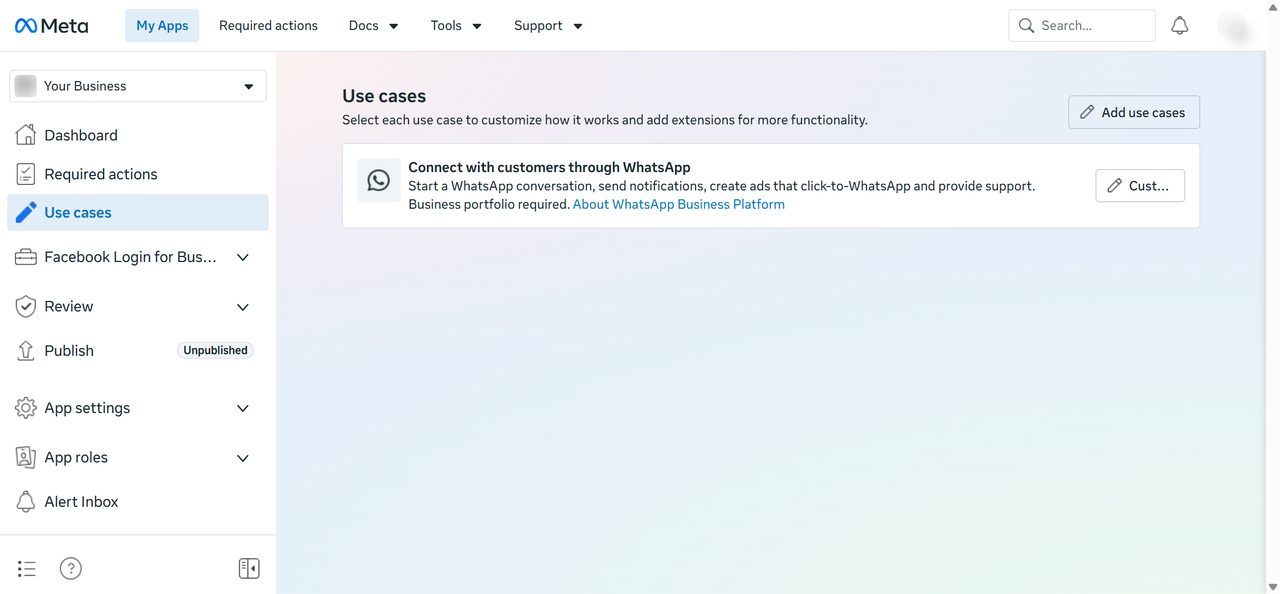
Choose your business portfolio
Pick the business portfolio your WhatsApp number should belong to, then finish creating the app.
Fill in the privacy policy and publish
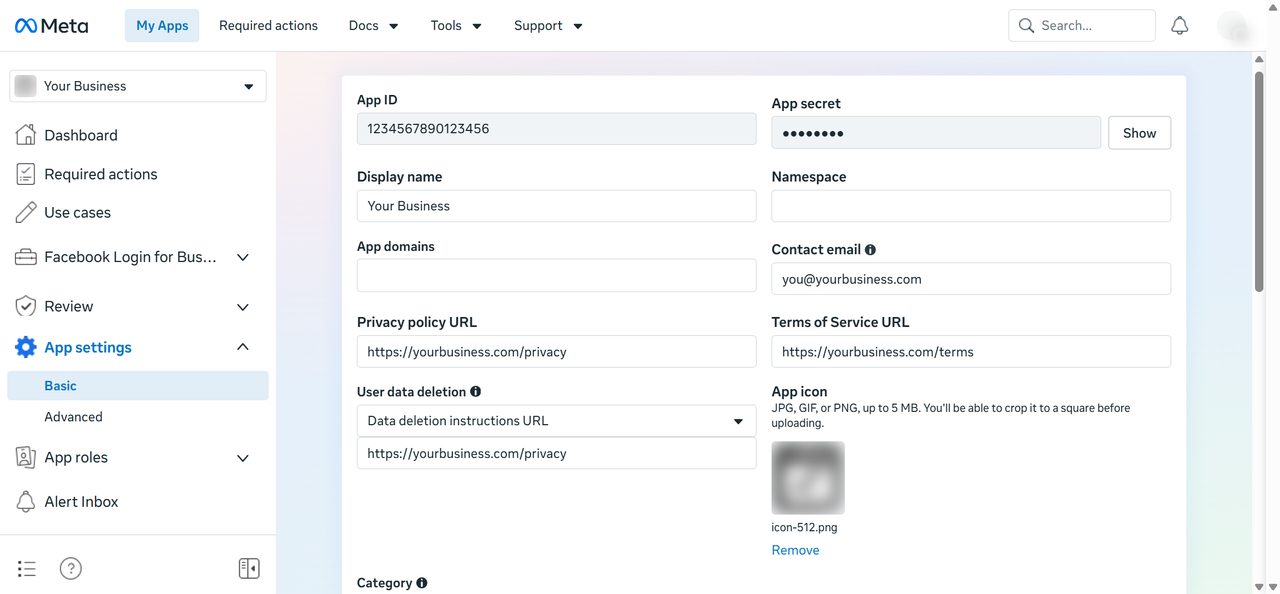
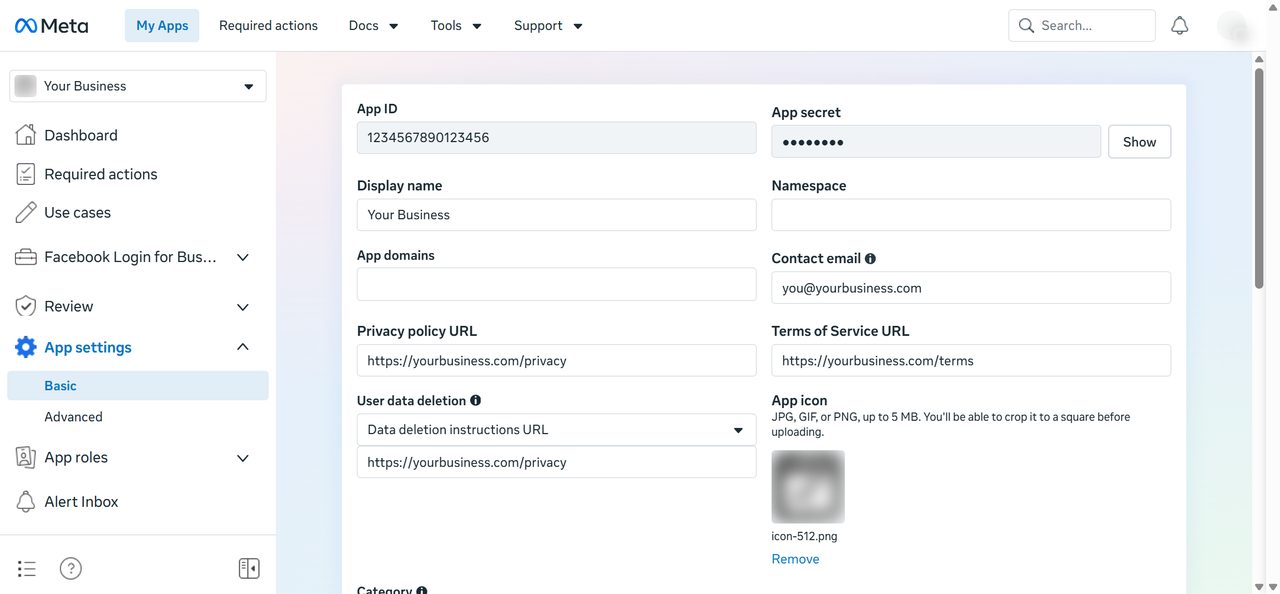
Open App settings → Basic, enter your business’s Privacy policy URL and click Save changes. Then click Publish: Meta’s webhook settings warn that an unpublished app receives only test messages. Messaging from your own number doesn’t need App Review.
Part 2 · Add your WhatsApp number
Your number moves to the WhatsApp Cloud API. Read step 5 before you start.
Check your number can move
A number can be in the WhatsApp or WhatsApp Business app on a phone or on the WhatsApp Cloud API, not both. Use a fresh number if you can.
To move a number that is in the app today, you first delete its WhatsApp account on that phone (Settings → Account → Delete account). That is permanent: the app stops working for that number and its chats do not move to Serviti. Keeping the app alongside Serviti needs Meta’s coexistence connection, which Serviti doesn’t offer yet. If another provider manages the number today, release it from their account first using their steps.
You need the phone itself to receive a verification code by SMS or call. Meta also offers a free test number under Step 1. Try it out; you can ignore it.
Add the number in your Meta app
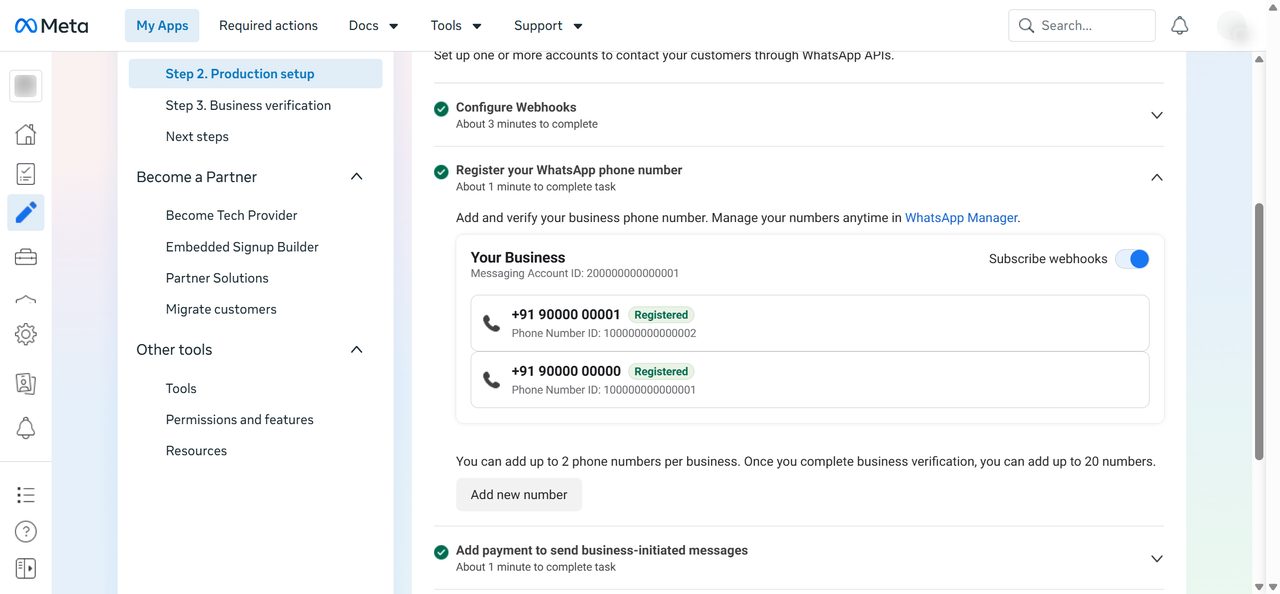
In your Meta app (developers.facebook.com), open Use cases → Connect with customers through WhatsApp → Customize → Step 2. Production setup and expand Register your WhatsApp phone number. Click Add new number, enter your business display name, category and number, and type the code Meta sends. Your number then shows as Registered.
Note your Phone number ID and WhatsApp Business Account ID
On the same screen, copy the Phone Number ID under your number, and the Messaging Account ID above it. Meta’s Messaging Account ID is what Serviti calls the WhatsApp Business Account ID. Serviti needs both.
Add a payment method
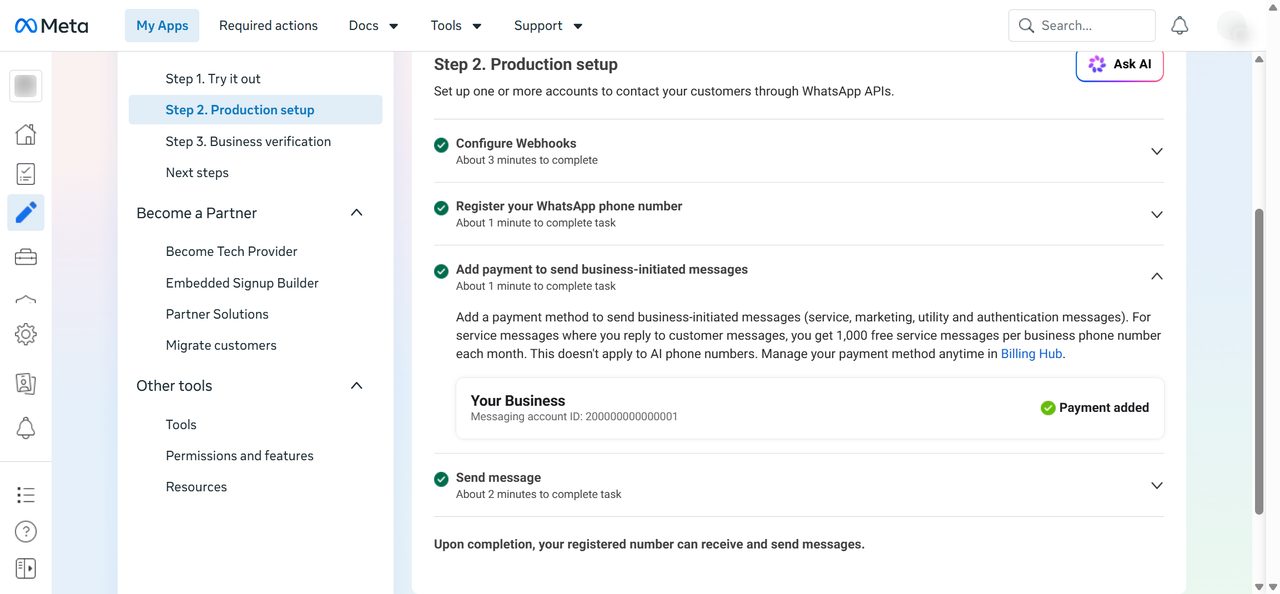
Expand Add payment to send business-initiated messages on the same page and add a card. It should then show Payment added. Meta bills you directly. Meta does not charge for service replies within the 24-hour customer-service window, which resets with each customer message. Other message categories may be chargeable. Check Meta’s current pricing. Serviti subscriptions are separate.
Part 3 · Create the access token
Serviti uses a system user token to send your agent’s replies. Create it in business.facebook.com, in the same portfolio. If it is ever revoked, generate a new one and use Update credentials.
Add a system user
Open Settings → System users → Add. Give it any name that differs from your app’s, for example yourbusiness-wa-bot, and choose the Admin role.
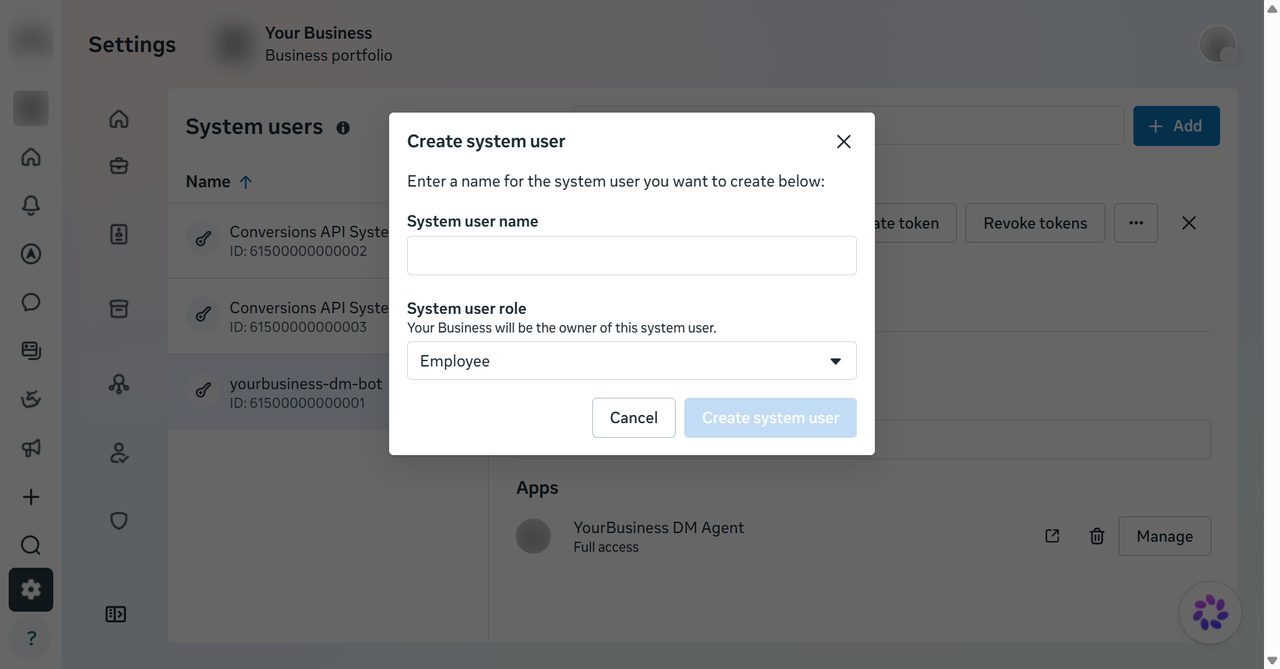
Assign your app and WhatsApp account
Open the system user, click Assign assets and give it full control of your new app and your WhatsApp account. Serviti checks the token can see your number, so the WhatsApp account must be assigned.
Generate the token
Click Generate token, choose your app, set expiry to Never and select
whatsapp_business_messagingandwhatsapp_business_management. Copy the token straight away: Meta shows it once.Copy the App Secret
Back in developers.facebook.com, open App settings → Basic, click Show next to App secret and copy it.
Part 4 · Connect in Serviti
Sign in at app.serviti.ai as a workspace admin.
Open the own-app connection
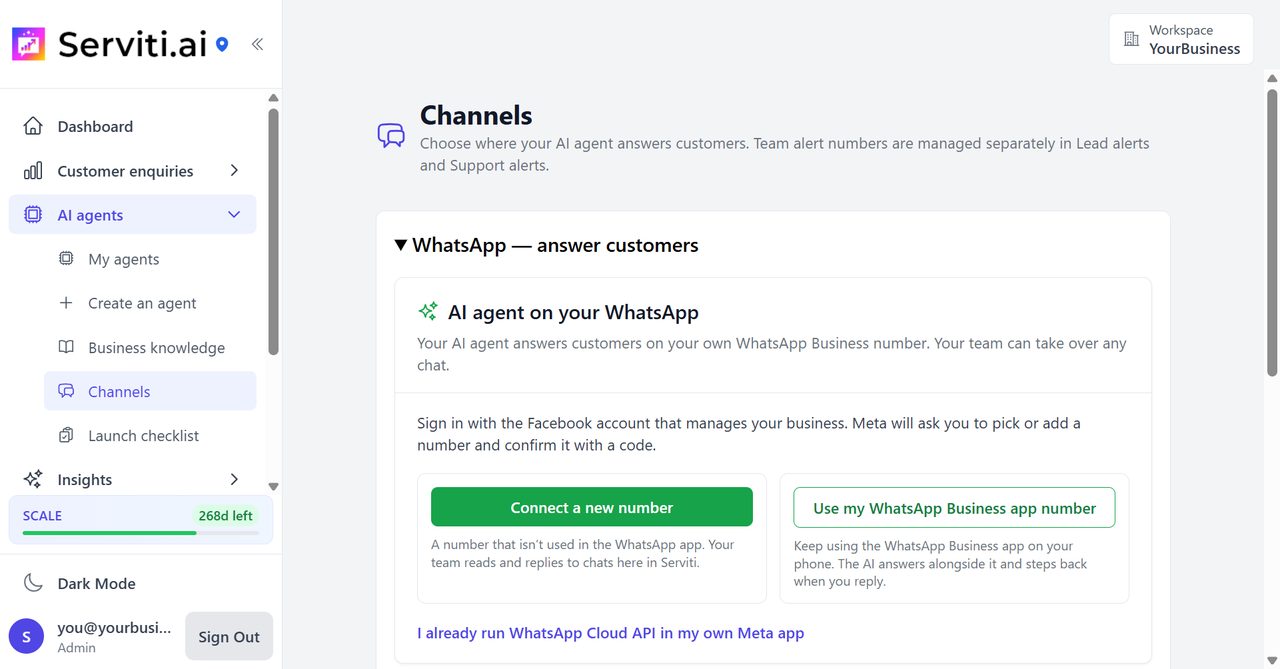
Open AI agents → Channels. Under AI agent on your WhatsApp, click Connect WhatsApp, then click I already run WhatsApp Cloud API in my own Meta app at the bottom. Skip the two buttons above it: they are not available yet.
Paste your details
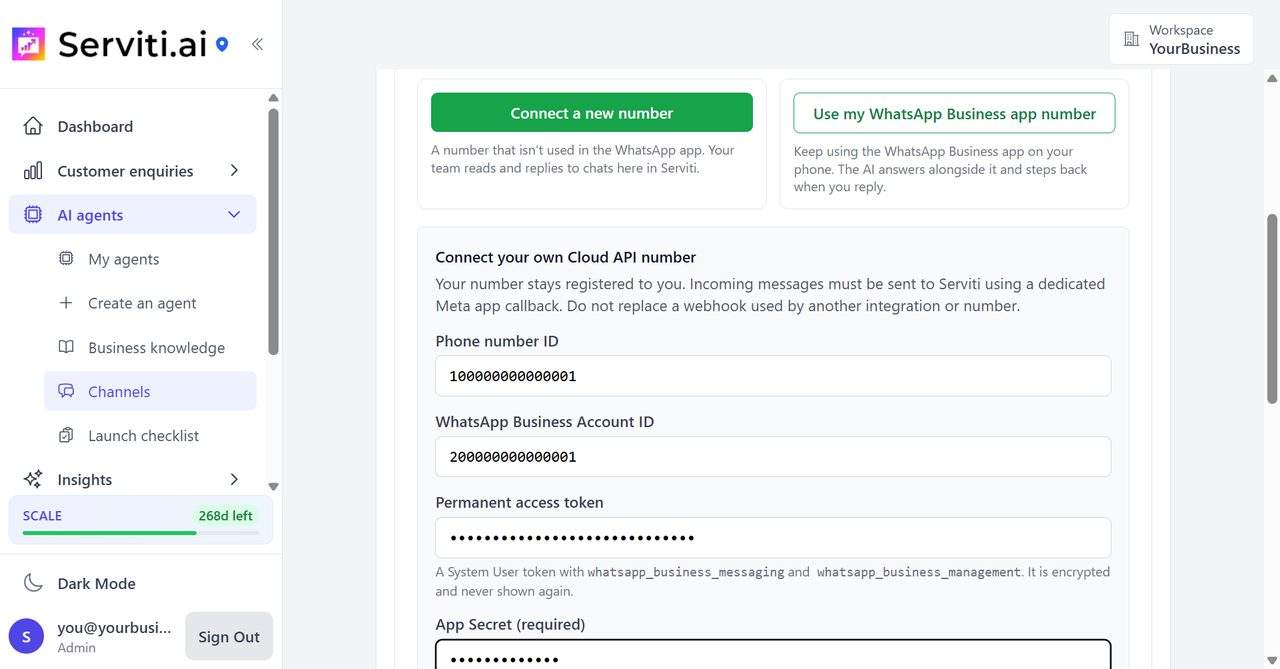
- Phone number ID and WhatsApp Business Account ID: the Phone Number ID and Messaging Account ID from step 7.
- Permanent access token: from step 11.
- App Secret: from step 12.
- Does this app callback serve another integration or number? Choose No — this callback is dedicated. If your app’s callback already serves another tool or number, don’t overwrite it: create a separate Meta app for Serviti (step 1) and use that.
Click Connect. Serviti checks with Meta that your token controls that number.
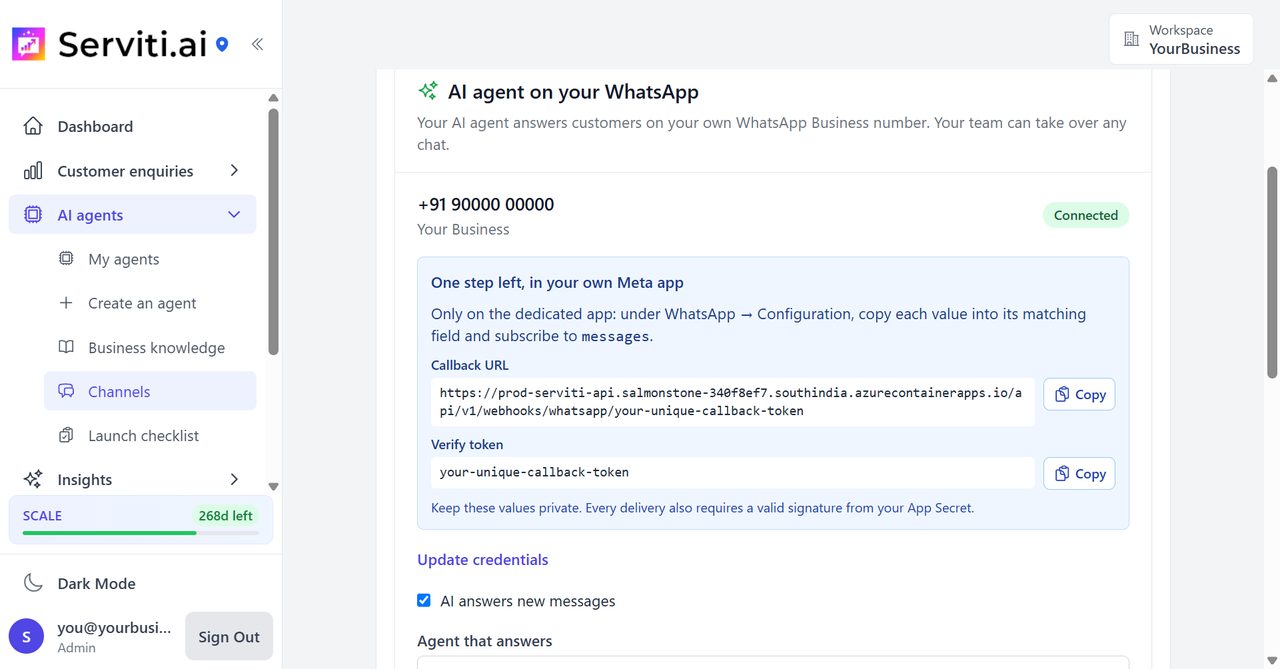
Copy your Callback URL and Verify token
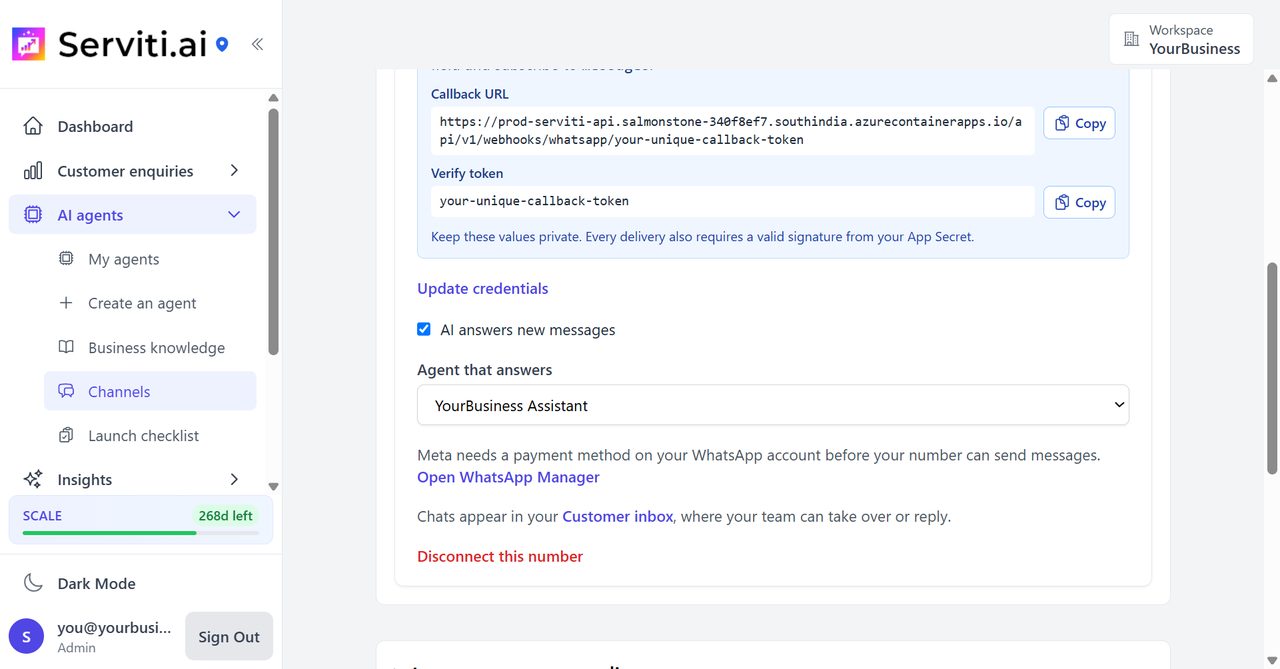
Serviti now shows a Callback URL and a Verify token. Keep this page open and treat both like passwords.
Part 5 · Point Meta at Serviti
Back in your Meta app.
Paste the Callback URL and Verify token
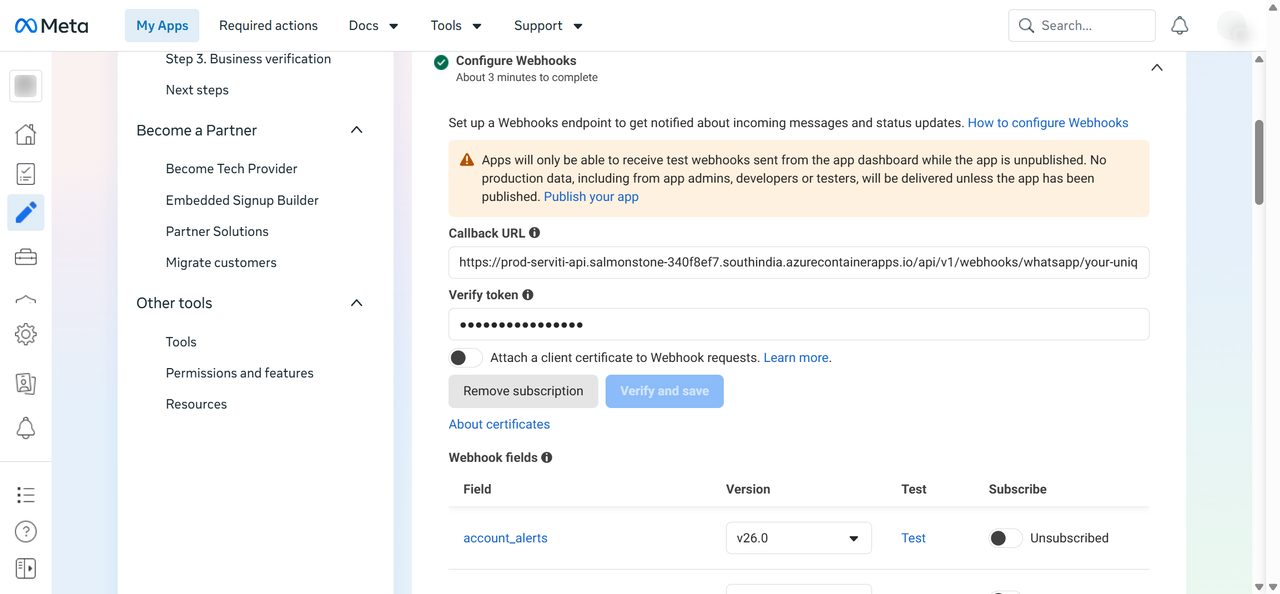
In your Meta app (developers.facebook.com), open Use cases → Connect with customers through WhatsApp → Customize → Step 2. Production setup and expand Configure Webhooks. Paste the whole Callback URL, and in Verify token paste Serviti’s Verify token (not the URL). Click Verify and save. Leave Attach a client certificate off.
Subscribe to messages
Below it, in the Webhook fields list, switch
messagesto Subscribed. Leave the others as they are.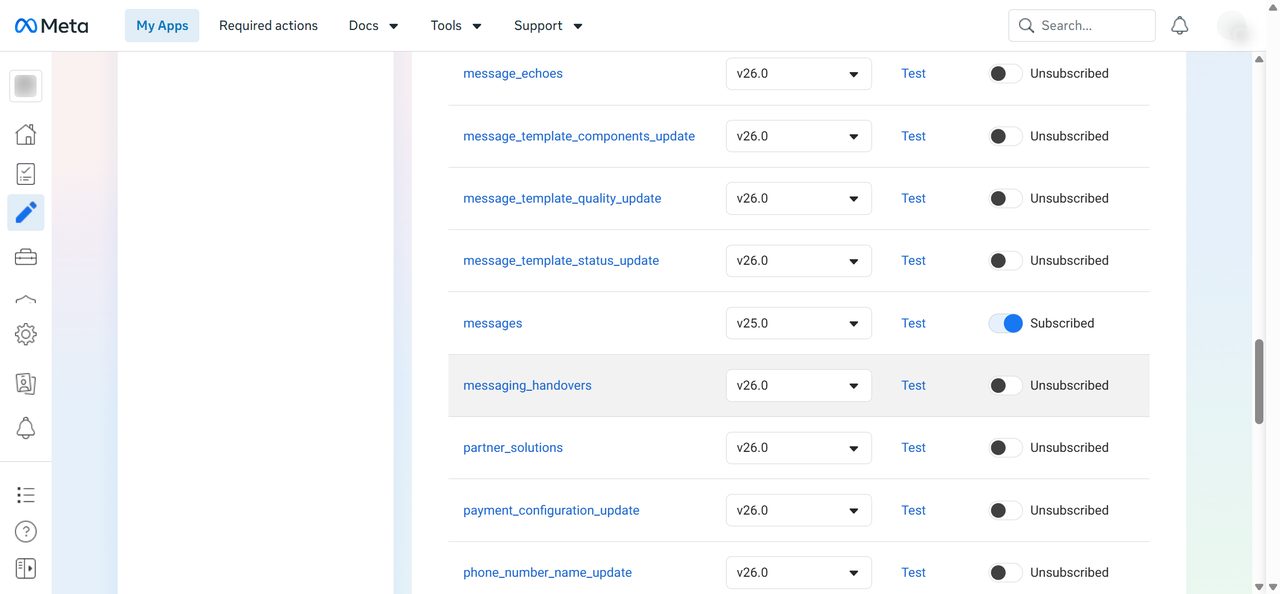
Subscribe your app to your WhatsApp account
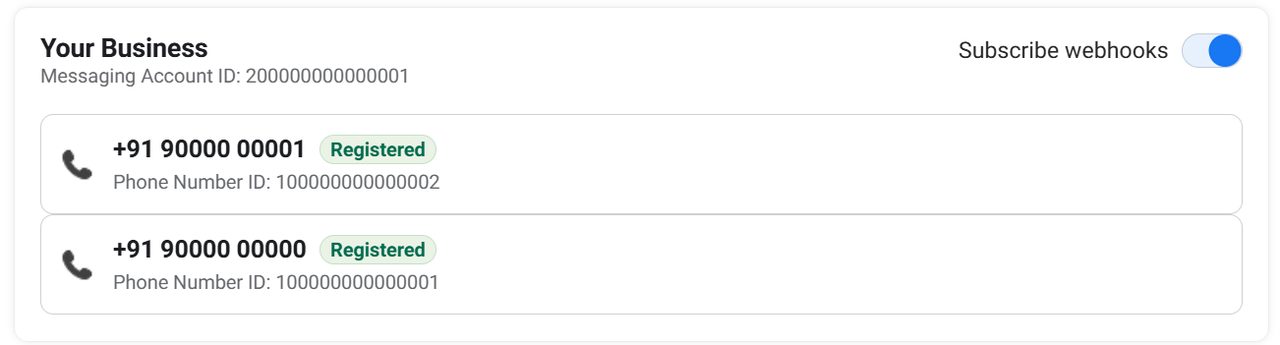
Meta only sends a number’s messages to apps subscribed to its account. Back in Register your WhatsApp phone number, switch on Subscribe webhooks next to your account.
Part 6 · Turn it on
The last step, in Serviti.
Choose the agent and switch it on
Under AI agent on your WhatsApp, choose the Agent that answers and switch on AI answers new messages. Send a real message from another phone. Check that the AI reply is delivered and the conversation appears in Customer inbox. Use Serviti’s human-takeover controls and confirm the AI does not answer over your team.
Before you call it ready
- A real inbound message from another phone arrives.
- The AI reply is delivered and the conversation appears in Customer inbox.
- A clearly labelled test enquiry using contact details you control creates a lead in Leads and reaches the configured alert address.
- Human takeover pauses the AI. Resume AI only when your team is ready.
A successful webhook verification, Meta test sample or Connected badge alone does not prove the complete journey works.
Not answering? Check these
Meta won’t add my number
- The number is still in the WhatsApp or WhatsApp Business app, or still with another provider. See step 5.
- The code must reach the phone: choose a call if SMS doesn’t arrive.
Serviti says it could not connect the number
- Check the Phone Number ID, not the phone number itself, went in the first box, and the Messaging Account ID in the second.
- Check the system user has your WhatsApp account assigned (step 10) and the token has both WhatsApp permissions.
Verify and save fails at Meta
- The Verify token box takes only the token from Serviti, not the whole Callback URL.
- Copy both values again with Serviti’s Copy buttons.
Messages arrive but the agent never replies
- Check Subscribe webhooks is on (step 18). If the switch won’t stay on, run POST
<Messaging Account ID>/subscribed_appsin Graph API Explorer with your token. - Check AI answers new messages is on and an agent is chosen.
- Check the App Secret is the one from your app’s Basic settings. To fix it, use Update credentials: your Callback URL stays the same.
It worked, then stopped
- The card shows Needs attention: the token may have expired, been revoked or lost required permissions. Generate a new one and use Update credentials.
- Meta stopped sending because the payment method failed. Check WhatsApp Manager.
- The Callback URL in your Meta app was changed. If that app is only for Serviti, paste Serviti’s values again. If another tool now uses it, give Serviti its own Meta app (step 1).
Paid WhatsApp connection assistance: from ₹19,999 (outside India: $499), quoted after we review your setup. This is separate from free website-agent setup help, subscriptions and Meta messaging charges.